Retype-Workflow

All about Retype
Section titled “All about Retype”From the Web:
“Retype is a Markdown-first documentation website builder that converts Markdown .md files into a beautiful, production-ready static website without requiring coding or design work. It is a command-line tool installed via npm, yarn, or dotnet CLI (e.g., npm install retypeapp –global), which allows users to write content in plain text and automatically generates HTML output.”
Local Machine
Section titled “Local Machine”Ensure you have all pre requisite build components installed. Obviously, Git, npm, SSH and retype are the key ones (if not already installed previously).
To bring up the Staging build within your local machine, follow these steps:
- From Terminal,:
retype start- The Localhost URL should display, copy/paste it into your browser to view it.
- If it detects an error, then the project needs investigation as to the cause. The resulting error screen should provide a log entry to assist with resolving it.
- Rerun the command until the site project displays correctly.
Sitemap Setup
Section titled “Sitemap Setup”To ensure that your Retype project has a guaranteed sitemap, run this command.
npm install sitemap-generatorOnce your project has been pushed to GitHub Pages, check the resulting published output, by tacking on sitemap.xml to the URL. Hopefully all of the XML pages are displayed.
Tags are added onto each page as frontmatter items:
tags: - item1 - item2Retype has the ability to display a Tag Cloud at the bottom of the left sidebar. However, it is a paid option, only available if you sign up to Retype’s premium plan.
GitHub
Section titled “GitHub”Retype requires a deploy script to be enabled in GitHub actions. Include this into a file called retype-action.yml, to be stored in the github/workflows folder:
name: Publish Retype powered website to GitHub Pageson:  workflow_dispatch:  push:    branches:      - main
jobs:  publish:    runs-on: ubuntu-latest    permissions:      contents: write
    steps:      - uses: actions/checkout@v6        with:          fetch-depth: 0
      - uses: retypeapp/action-build@latest
      - uses: retypeapp/action-github-pages@latest        with:          update-branch: true
GitHub Pages
Section titled “GitHub Pages”When configuring a Retype project, you’ll need to point to the Retype Branch, within the Build and Deploy section.
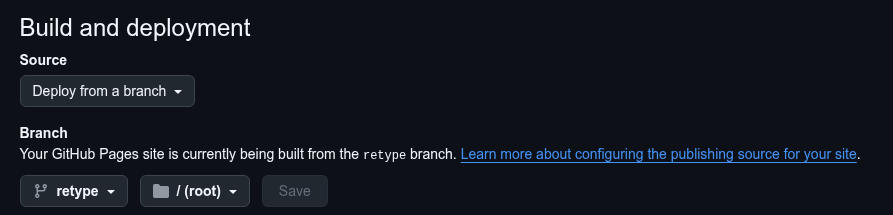
Once locked in, Save it.
If all this works as intended, your GitHub Page should display online.
Once Published
Section titled “Once Published”- Looks good.
- On Mobile, it seems the NavBar details are not displayed.
- Footer displayed correctly.