Syncthing
What is Syncthing?
Section titled “What is Syncthing?”Syncthing has nothing to do with the publishing of a statuc website. It is a tool to copy your source content to other parts of your local network as a backup in case of failure on your principal sourcce.
Syncthing is a freeware app that replicates/synchronises content and data across devices on your local network. If you have a home router, add various devices to it, then Syncthing can be used for this purpose. In layman’s terms, it is an automated copying and syncing tool that can deployed as soon as you power on your device.
Syncthing is available for:
- Windows
- Mac
- Linux
- RaspberryPi
- Android
- iPhone
The Syncthing app can be installed from: website
How to set up Syncthing
Section titled “How to set up Syncthing”Syncthing must be installed on every device you wish to use on your local network. Once the app is installed on your device, select it from your Programs Manager to run it, the interface screen will display in your web browser.
Note:
- This functionality will only be desktops and laptops, which will only install via a browser.
- For Linux systems, Syncthing will have two parts to running it. 1) Run Syncthing, 2) run Web GUI.
- For Mobile, Syncthing has its own app, available on Google Playstore, F-Droid, or Zapstore. Use Syncthing-Fork. See below for more.
The initial screen interface (an example only) looks like this:
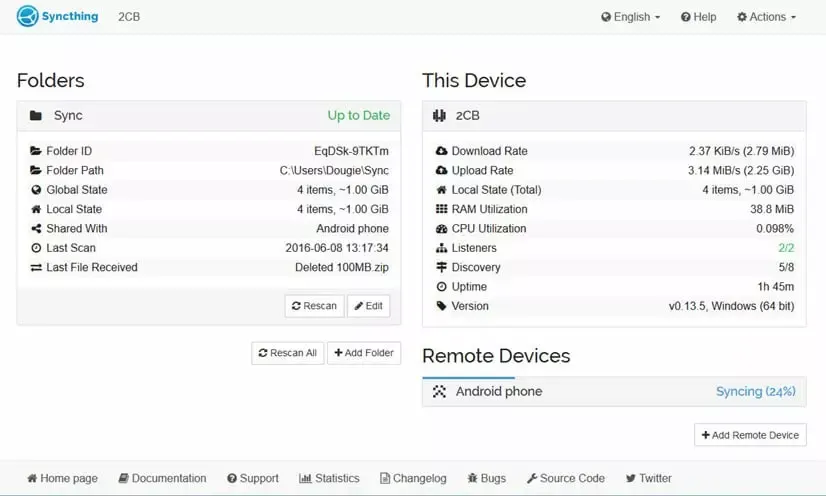
The Left side shows the synced folders on the current device. This left side view should look similar to all other devices you are synchronising to/from.
Installing for Mobile (Android)
Section titled “Installing for Mobile (Android)”Syncthing has its own app for Android. Find the App from the Google Playstore, or other non Google repositories such as F-Droid or Zapstore (the app is known as Syncthing Fork).
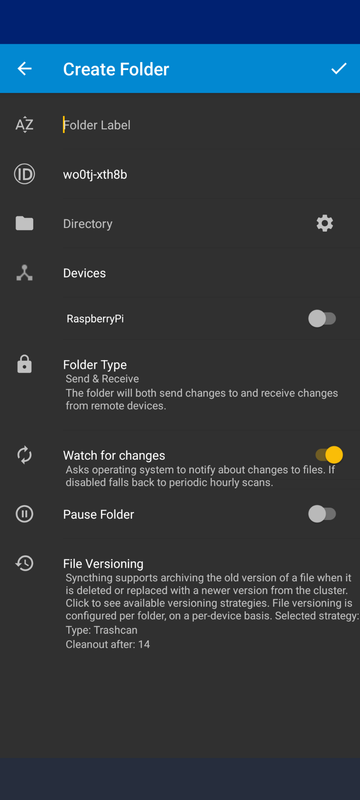
- Once installed, the App will be empty. You will need to create a folder for syncing, under the + button, which is the Create Folder button.
- Give it a name (Folder Label)
- Point to the folder on your device/source (Directory)
- Select another device on your local network to sync to. These should already be listed if the device is installed elsewhere with Syncthing detected, making it available on your devices list (Device)
Do not worry about Folder Type, Watch For Changes, Pause Folder or File Versioning.
- Click the Tick at the top right of screen to lock it in.
Installing for iPhone
Section titled “Installing for iPhone”Unfortunately I do not use Apple tools so I am unable to provide an install instruction.